
Thank You Page Builder
Building the Thank-You Page
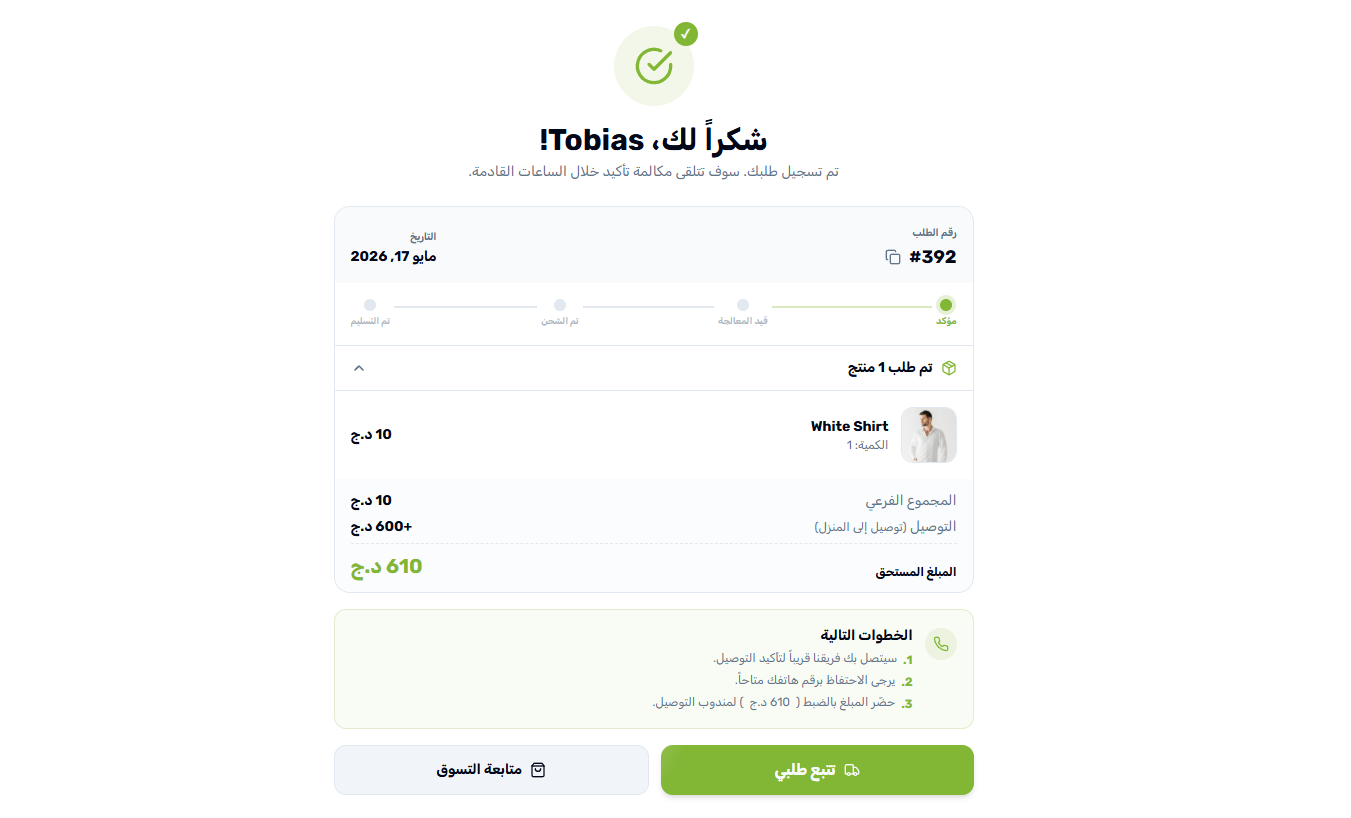
The Thank-You page is the most underused conversion surface in eCommerce, and the most important one in COD. The customer just committed to receiving a package and paying in cash — and now they wait. In that wait, doubt creeps in. “Did the order go through?” “When will it arrive?” “What if no one calls?” Every one of those questions, left unanswered, becomes a cancellation when the courier finally calls. The default WooCommerce “Order received” page does nothing to address this — a bare line of text and a table of items. Yaxii COD replaces it with a celebratory, information-rich confirmation experience: confetti when the page loads, a visual timeline of what happens next, personalized greetings using the customer’s real name, delivery and payment cards that summarize the agreement, and clear next-step buttons that turn the wait into a follow-up plan.
Opening the Thank-You Page settings
Go to Yaxii COD > Settings and click the Thank You tab in the sidebar.
Dynamic tokens you can use anywhere
Several text fields on this page (Heading, Description, Next Steps) accept dynamic tokens — placeholders that are automatically replaced with the customer’s real order data when the page renders. Tokens are case-sensitive and must be typed exactly. Tap any token below to copy it:
{name}{last_name}{full_name}{order_number}{total}{phone}{city}For example, a Heading field set to Thank you, {name}! will render on the storefront as “Thank you, Mohamed!” for a customer whose first name is Mohamed.
Configurable Thank-You settings
| Setting | What it controls |
|---|---|
| Heading text | The large headline at the top of the page. Use a token like {name} for a personalized greeting (for example, “Order confirmed, {name}!”). |
| Description text | A short reassurance paragraph under the heading. Use {order_number} to give customers something concrete to reference if they need to follow up. |
| Show confetti | A burst of confetti animation when the page loads. Looks playful, but does serious work — it tells the customer’s brain “the order really went through”. |
| Show timeline | The visual three-step timeline (Order placed → Preparing → Out for delivery). Reassures the customer that there is a real process behind the order. |
| Show order items | The list of products in the order, with images and prices. |
| Order items expanded | Whether the order items list is expanded by default (on) or collapsed behind a “Show items” toggle (off). |
| Show delivery card | A card summarizing the delivery address and selected delivery method. |
| Show payment card | A card confirming the payment method (typically “Cash on Delivery”) and the total amount due to the courier. |
| Show next steps | A “What happens next” block with custom text — the place to explain when the courier will call, what to have ready, and how to reach you. |
| Next steps text | The actual text shown in the next-steps block. Supports all dynamic tokens. |
| Show track button | A “Track my order” CTA. Highly recommended on. |
| Track button URL | Where the track button leads. Leave empty to default to your Order Tracking page. |
| Show shop button | A “Continue shopping” CTA that brings the customer back to the catalog. |
| Shop button URL | Where the shop button leads. Leave empty to default to your homepage. |
Setting up a high-trust Thank-You page
- 1Open the Thank You tabGo to Yaxii COD > Settings > Thank You.
- 2Write a personal headingUse a token. Something like Thank you, {name}! Your order is confirmed. A name in the heading turns a generic system message into a personal one.
- 3Reassure in the descriptionTell the customer exactly what to expect, and reference their order number. Example: Your order {order_number} has been received. Our team will call you within 24 hours to confirm the delivery.
- 4Leave confetti onIt is a small visual cue, but it makes the order feel real and celebratory — both of which reduce buyer’s-remorse cancellations.
- 5Enable the timeline, items, and cardsAll three reassure the customer that the order is real. Leaving them on costs nothing and removes uncertainty.
- 6Write strong Next Steps textThis is the most important text block on the page. Use tokens to make it personal. Example: Hello {name}, our courier will call you on {phone} within 24 hours to schedule delivery to {city}. Please have {total} ready in cash when the package arrives.
- 7Enable both buttonsShow the Track button (links to your Order Tracking page) and the Continue Shopping button (links back to the homepage). Two clear paths forward, no dead end.
- 8Save SettingsClick Save Settings.
What’s Next?
The Thank-You page closes the customer loop. The final piece is the logistics infrastructure that makes the delivery actually happen — generating shipping zones for all 58 Algerian wilayas with the right prices for Home Delivery and Stop Desk.