
Product Carousel
Configuring the Product Carousel
The Product Carousel is a horizontal sliding row of product cards — best for surfacing curated subsets of your catalog without overwhelming the page. Use it for best-sellers, on-sale flash deals, freshly added products, or a specific category you want to spotlight. The carousel scrolls horizontally on mobile with a flick gesture, shows previous and next arrows on desktop, and supports an optional countdown timer for flash sales — the kind of pressure cue that turns a casual visitor into a buyer.
Opening the Product Carousel section
Go to Yaxii COD > Settings > Homepage Layout. Find the Product Carousel card and click it to expand. If you do not see a Product Carousel card, click Add Section at the bottom of the list and choose Product Carousel.
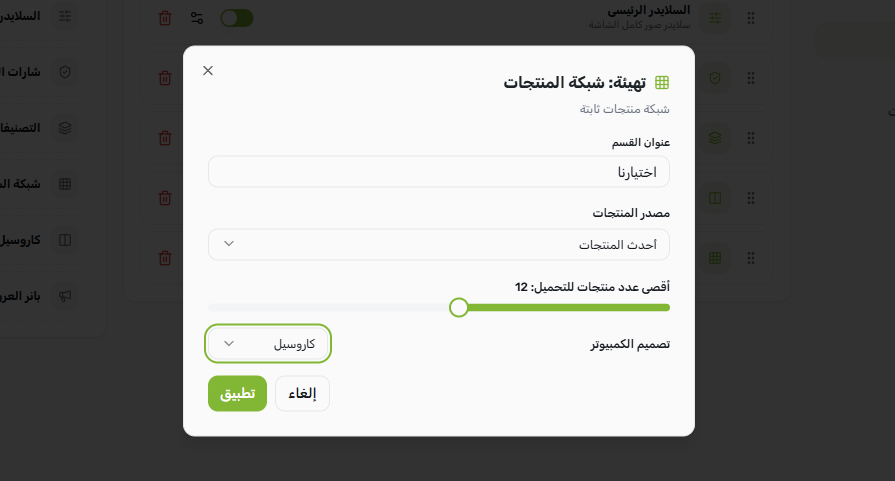
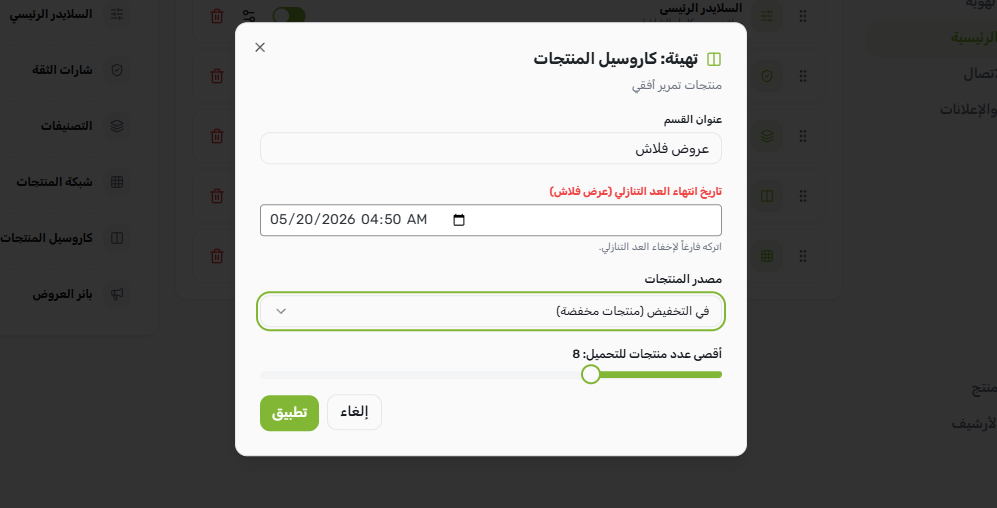
Configurable fields
| Field | What it controls |
|---|---|
| Title | The heading above the carousel (for example, “Flash Sales”, “Best Sellers”, or “New Arrivals”). |
| Data source | What products to display. Choose between On Sale, Best Selling, Latest, or a specific product category. |
| Max items | How many products to load in the carousel (default 8). More products mean more to scroll through but a heavier page. |
| End date (optional) | A date and time that triggers a live countdown badge next to the section title — perfect for flash sales. Leave empty for a regular carousel without a timer. |
The four data sources explained
| Data source | What it surfaces | Best for |
|---|---|---|
| On Sale | Products that have a sale price set in WooCommerce. | Flash sales, end-of-season discounts, promotional campaigns. |
| Best Selling | Products ranked by total sales — your top performers. | Building trust with new visitors by showing what others bought. |
| Latest | The most recently published products. | Highlighting new arrivals or fresh inventory. |
| Specific category | Products from a single product category you choose. | Spotlighting a featured collection (for example, “Men’s Watches” or “Skincare”). |
Setting up a Flash Sales carousel
- 1Open the Product Carousel sectionIn the Homepage Layout panel, click the Product Carousel card to expand it.
- 2Set the titleUse a strong, urgent title like “Flash Sales” or “Limited Time Offers”.
- 3Choose On Sale as the data sourceThe carousel will automatically pull every product that has a sale price set on its WooCommerce edit screen.
- 4Pick an item countSet Max items to 8 or 12 — enough variety to scroll through, not so many that loading slows down.
- 5Add an end date for urgencyUse the date and time picker in the End Date field. A live countdown badge appears next to the section title and counts down in real time on the storefront.
- 6Save SettingsClick Save Settings. Your flash sale goes live, countdown included.
Setting up a Best Sellers carousel
For a best-sellers row, leave the End Date empty (no countdown — best sellers are always-on, not time-limited). Choose Best Selling as the data source, set the title to something inviting like “Customer Favorites” or “Best Sellers”, and pick a max item count around 8. The carousel automatically refreshes its product order as new sales come in.
What’s Next?
You have a carousel for curated picks. Next, configure the Product Grid for the main catalog window on your homepage — a larger, more comprehensive showcase.