
Contact And Tracking Pages
Setting up the Contact and Tracking Pages
Two store pages live outside the Homepage Builder but are critical to merchant credibility: the Contact page, where customers reach you when something goes wrong (or when they are about to spend money and want reassurance), and the Order Tracking page, where they check on a delivery without contacting support. Both pages were created automatically when you ran the Onboarding Wizard. The Contact page is fully configurable from a dedicated settings tab; the Order Tracking page works out of the box with no setup required.
The Contact page at a glance
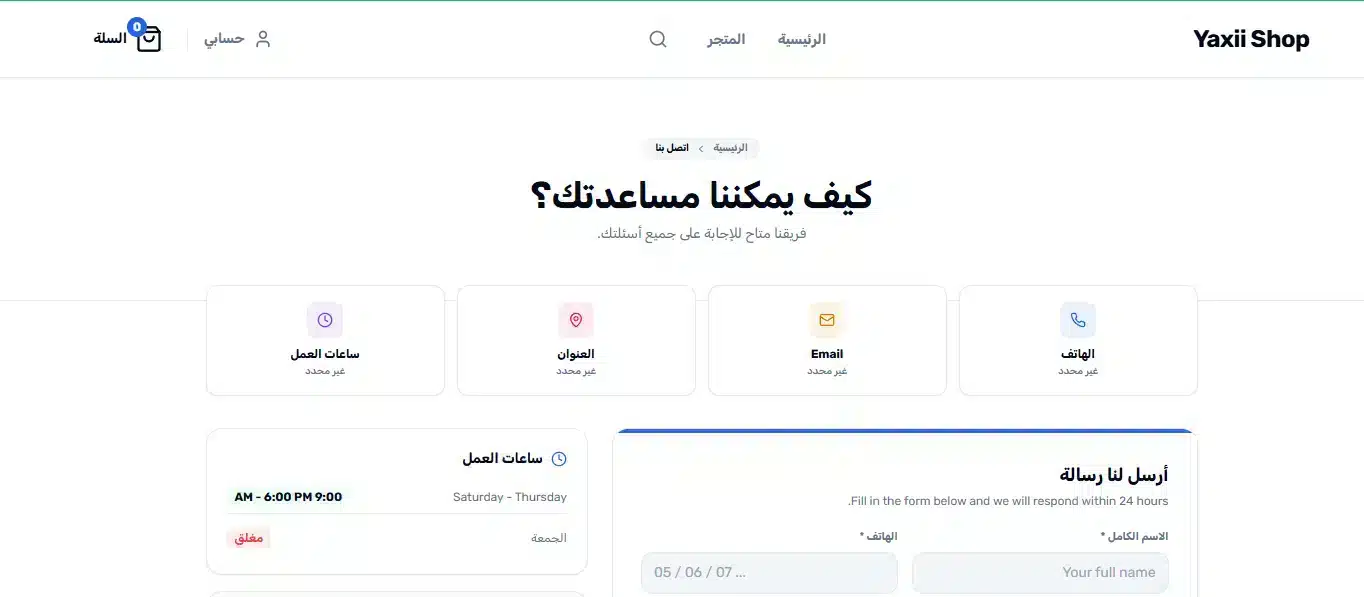
The Contact page is a multi-block layout with five configurable parts: a hero section at the top, a row of quick-info cards (phone, email, address, hours), a main contact form, a WhatsApp widget, a service hours sidebar, and an FAQ block. Every block can be individually shown or hidden, so the page adapts to stores with rich contact info as well as stores that only want to expose a WhatsApp button.
Opening the Contact page settings
Go to Yaxii COD > Settings and click the Contact Page tab in the sidebar.
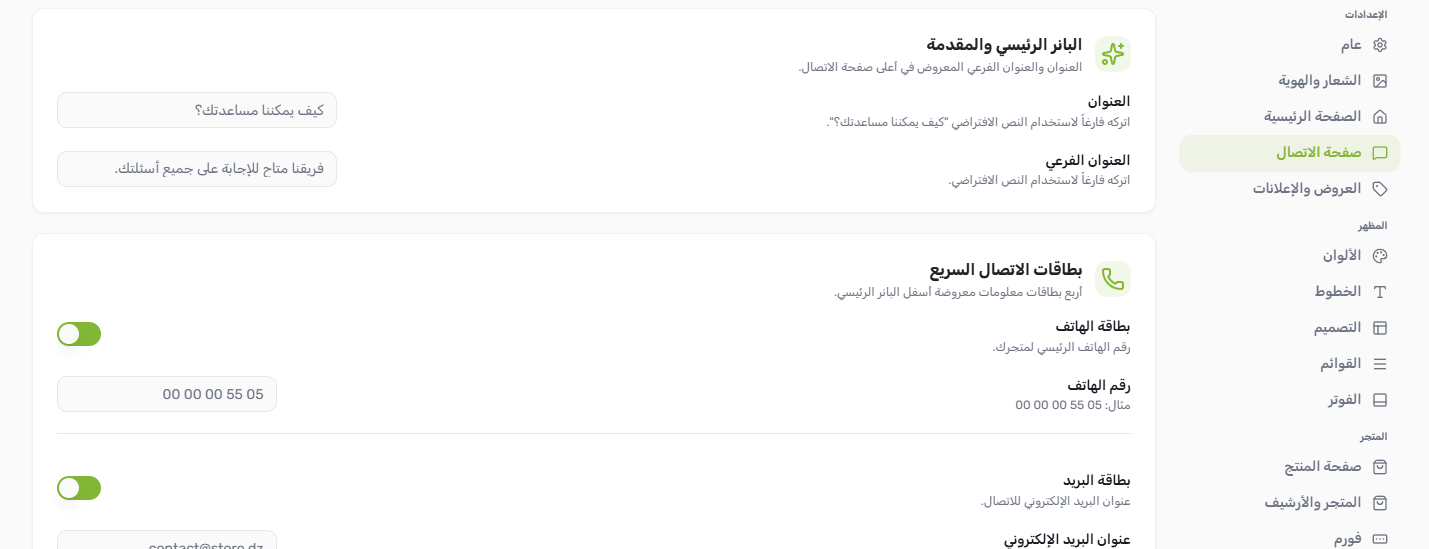
Hero section
| Setting | What it controls |
|---|---|
| Hero title | The large heading at the top of the page (default: “How can we help you?”). |
| Hero subtitle | A short reassuring line below the heading. |
Quick contact cards
Four small cards appear under the hero — Phone, Email, Address, and Service Hours. Each card has a show/hide toggle and an input field for the value. Toggle off any card you do not want to display (for example, hide the Address card if your store has no physical office).
| Card | Fields |
|---|---|
| Phone | Show toggle + phone number text. |
| Show toggle + email address. | |
| Address | Show toggle + address text. |
| Hours | Show toggle + short hours summary (for example, “9 AM – 6 PM”). |
Contact form
| Setting | What it controls |
|---|---|
| Show contact form | Master toggle for the form. When off, the WhatsApp widget and sidebar expand to fill the space. |
| Form title | The heading above the form (for example, “Send us a message”). |
| Form subtitle | A short reassurance below the form heading (for example, “We respond within 24 hours”). |
| Form subjects | The list of subjects in the subject dropdown — one subject per line. Customize for your store (for example, “Product question”, “Order tracking”, “Return request”, “Partnership”). |
WhatsApp widget
| Setting | What it controls |
|---|---|
| Show WhatsApp | Toggle the WhatsApp block in the sidebar on or off. |
| WhatsApp number | The phone number for WhatsApp messages, in international format without the plus sign (for example, 213555123456). If left empty, falls back to the WhatsApp number in the Footer settings. |
| Status text | A small line under the WhatsApp heading (for example, “Online now” or “Replies in minutes”). |
| Button label | The text on the WhatsApp call-to-action button (for example, “Open WhatsApp” or “Chat with us”). |
Service hours sidebar
| Setting | What it controls |
|---|---|
| Show service hours | Toggle the hours block in the sidebar on or off. |
| Weekdays label | The day range label (for example, “Saturday – Thursday”). |
| Weekdays hours | The hours displayed for those days (for example, “9:00 AM – 6:00 PM”). |
| Friday label | The label for Friday (or whatever day stands apart). |
| Friday hours | The hours for that day (for example, “Closed” or “10:00 AM – 2:00 PM”). |
FAQ block
| Setting | What it controls |
|---|---|
| Show FAQ | Toggle the FAQ block in the sidebar. |
| FAQ title | The heading above the list (for example, “Frequently asked questions”). |
| FAQ items | One bullet point per line in the textarea. Keep each line short — these are quick reassurances, not full answers (for example, “Delivery across all 58 wilayas”, “Cash on delivery”, “Exchanges within 7 days”). |
Configuring the Contact page
- 1Open the Contact Page tabGo to Yaxii COD > Settings > Contact Page.
- 2Set the hero textWrite a friendly hero title and subtitle. The default works for most stores, but a personal touch (“We’d love to hear from you”) often performs better.
- 3Fill in your contact infoEnter your phone number, email, address, and hours in the quick contact cards. Toggle off any card you do not want shown.
- 4Customize the form subjectsEdit the form subjects list to match the kinds of messages you actually receive — this filters incoming requests before they reach you.
- 5Add your WhatsApp numberIf you handle customer questions on WhatsApp, fill in the number. This is often the single most useful piece of contact info for COD stores in Algeria.
- 6Write 3 to 5 FAQ itemsUse the FAQ items textarea to list short reassurances. Three to five is enough — more than that becomes visual clutter.
- 7Save SettingsClick Save Settings. Visit the Contact page on the storefront to confirm everything renders correctly.
The Order Tracking page
The Order Tracking page is a one-purpose page: a customer enters their order number and billing email, and WooCommerce shows them the current order status. The page was created automatically by the Onboarding Wizard and linked into your menus — there are no settings to configure. The styling matches your theme colors and typography automatically.
To verify it is working, place a test order in WooCommerce, copy the order number from the order confirmation, then visit the Order Tracking page on your storefront and enter the number along with the billing email. The order status should appear immediately.
What’s Next?
Your storefront is built. The next pillar covers the part where customers actually become buyers — the COD checkout flow, the cart, the product page layout, and the thank-you experience that turns a one-time order into a repeat customer.