
Cod Fast Checkout Form
Configuring the COD Fast Checkout Form
The default WooCommerce checkout was built for credit-card buyers in Europe and North America — twenty fields, two pages, a state-and-zip lookup, and a phone field treated as an afterthought. For a COD merchant in Algeria selling to mobile shoppers, that form is a conversion bleed: every extra field is another reason to leave. Yaxii COD replaces it with a native, zero-bloat checkout designed specifically for cash-on-delivery: a single page, mobile-first, with Algerian phone validation built in, no email required by default, no useless company or state fields. The Fast Checkout exists in two placements — embedded directly on the product page so customers can buy without ever visiting a cart, and on a dedicated streamlined checkout page for cart-driven orders — and both share the same engineering: kill friction, reduce fake orders, and put the buyer one tap away from confirmation.
The two surfaces of Fast Checkout
| Surface | Where it lives | Admin tab that configures it |
|---|---|---|
| Product page Fast Checkout | Embedded directly on every product page so the buyer never needs to visit the cart. | Yaxii COD > Settings > Form |
| Dedicated checkout page | The /checkout page customers reach when they add multiple items to the cart and proceed. | Yaxii COD > Settings > Checkout |
Product page Fast Checkout settings
Open Yaxii COD > Settings > Form in the WordPress admin. These controls govern the form embedded directly on every product page.
| Setting | What it controls |
|---|---|
| Enable Fast Checkout | Master toggle. Off means the product page shows only the standard “Add to Cart” button — on means the full COD order form appears under the product image. |
| Form behavior | How the form appears. Always visible renders the form inline; the alternative behavior reveals it after the customer taps “Order Now”. |
| Button text | The label on the final submit button (for example, “Order Now”, “Buy in 1 Click”). Leave empty to use the default “Order Now”. |
| Button style | Visual treatment for the submit button: Default (rounded rectangle), Pill (fully rounded), or Outline (transparent with brand-color border). |
| Shine effect | Adds a subtle moving shine across the submit button to draw the eye. Recommended on — small psychological cues raise click-through. |
| Show quantity selector | Whether customers can change the quantity directly inside the form. Turn off if you sell one-unit-only products to remove a decision. |
| Show order notes | Adds an optional “Order notes” textarea. Off by default — every extra field reduces conversion. |
| Show wilaya selector | Whether the 58-wilaya dropdown appears in the form. Almost always on for Algerian stores. |
| Show delivery options | Shows Home Delivery vs Stop Desk choices with prices that update based on the selected wilaya. |
| Enable Buy Now | Adds a secondary “Buy Now” express button that bypasses the cart entirely — for stores where speed matters more than upselling. |
Dedicated checkout page settings
Open Yaxii COD > Settings > Checkout. These controls govern the /checkout page reached from the cart.
| Setting | What it controls |
|---|---|
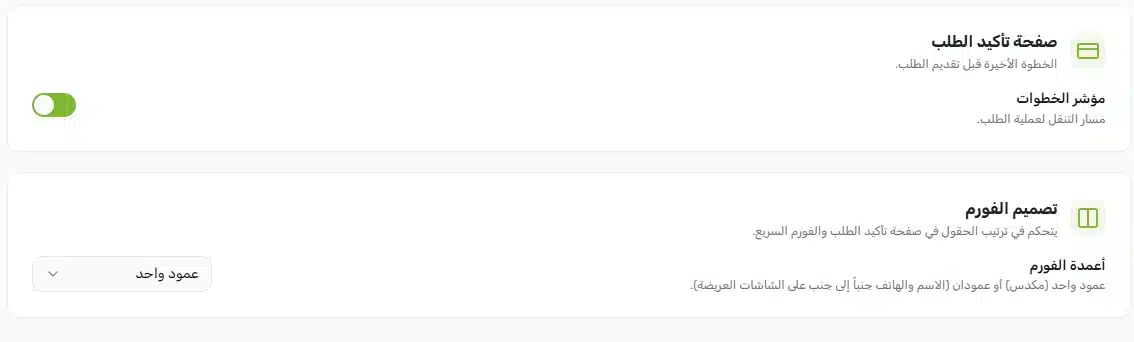
| Form columns | Choose between 1-col (single column on mobile, two columns on desktop — recommended default) and 2-col (forces two columns even on mobile for stores with very short forms). |
| Show progress steps | Displays the Cart → Shipping → Confirmation progress indicator at the top of the page. Reassures customers that the form ends soon. |
| Phone validation mask | Enforces Algerian mobile format (05, 06, or 07 followed by 8 digits). When on, the browser rejects malformed numbers before submission — the single biggest reducer of fake orders. |
| Require email | Off by default. Turn on only if you actually send transactional emails — otherwise it is just another barrier. |
| Show company field | Off by default. Only relevant for B2B stores selling to registered businesses. |
Setting up the product page Fast Checkout
- 1Open the Form tabGo to Yaxii COD > Settings > Form.
- 2Enable Fast CheckoutSwitch the master toggle on. The form will now appear under the product image on every product page.
- 3Pick a button labelUse action-driven copy (“Order Now”, “Buy in 1 Click”). Avoid generic words like “Submit” — name the outcome.
- 4Decide what to showTurn off any field you do not absolutely need. The shortest form wins: most Algerian COD stores show only Name, Phone, Wilaya, and Delivery Options.
- 5Keep the shine effect onThe subtle button shine adds visual draw without distracting from the rest of the page.
- 6Save SettingsClick Save Settings at the top of the panel.
Setting up the dedicated checkout page
- 1Open the Checkout tabGo to Yaxii COD > Settings > Checkout.
- 2Choose 1-colUse the recommended 1-col layout unless you have a specific reason to force two columns on mobile.
- 3Enable progress stepsThe Cart → Shipping → Confirmation indicator reassures hesitant buyers that the form is almost over.
- 4Turn on phone validationThis is the most important single setting on the page. Algerian phone validation alone filters out a large share of fake or accidental orders.
- 5Keep email and company offUnless you have a specific business need, leave both off. Every extra field is a chance to lose the order.
- 6Save SettingsClick Save Settings.
What’s Next?
The checkout itself is configured. Next, optimize the product page that leads into it — hide the meta clutter, turn variation dropdowns into tappable color swatches, and place the Fast Checkout form exactly where the buyer’s eye lands.