
Cart And Upsells
Cart Customization and Upsells
Most stores treat the cart as a review screen — a place where customers stop to verify before paying. That mindset wastes the single highest-intent moment in your entire funnel. The customer has already decided they want to buy. The cart is your last chance to raise the order value before checkout: suggest a complementary product, surface the free shipping threshold, let them adjust the quantity inline without trips back to the product page. Yaxii COD’s cart is a fully configurable conversion surface built around that reality — a second sales screen wearing a review screen’s clothes.
Opening the Cart settings
Go to Yaxii COD > Settings and click the Cart tab in the sidebar.
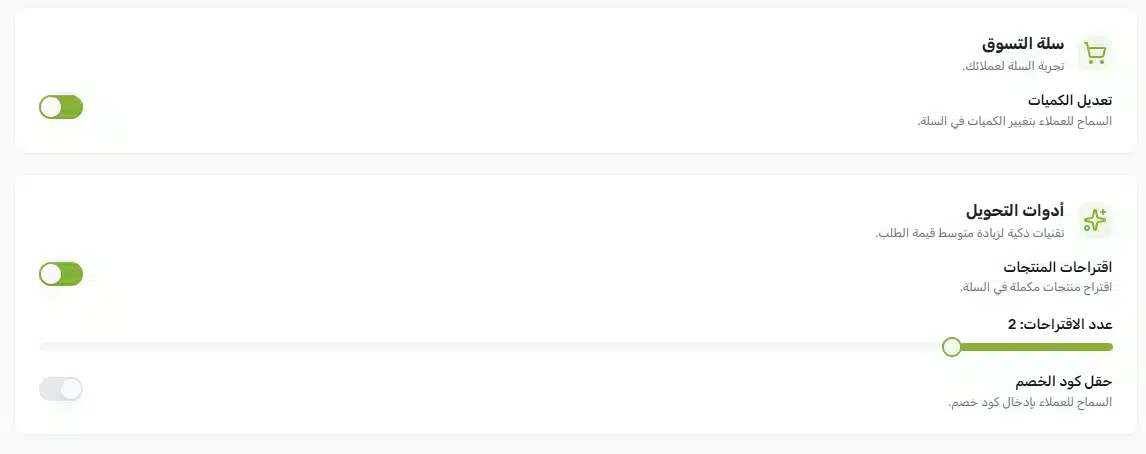
Configurable cart settings
| Setting | What it controls | Conversion impact |
|---|---|---|
| Show quantity controls | The plus/minus buttons next to each cart item that let customers change the quantity inline. | On — removing the need to go back to the product page to adjust quantity prevents bounces. |
| Show upsells | The “You may also like” row of suggested products displayed below the cart items. | On — this is the single highest-ROI feature in the entire cart. Even a 2% take rate compounds into meaningful order value lift. |
| Upsell count | How many upsell products are displayed (default 2). | Two to four works best — fewer feels empty, more becomes a distraction. |
| Show coupon field | Whether the “Have a coupon?” input is displayed in the cart. | Off by default. A visible coupon field tells customers “you are paying too much without a code” and pauses them while they search. |
The Free Shipping Progress Bar
The Free Shipping Progress Bar lives at the top of the cart and fills as the cart total approaches the threshold you set — a powerful nudge that turns “should I add one more?” into “I will add one more”. The bar’s configuration (on/off toggle and threshold amount) is in Yaxii COD > Settings > Promotions, documented in the Header and Footer Setup article. This section focuses on the conversion behavior the bar drives once it is enabled.
When the bar is on, your cart becomes an active negotiation: customers see exactly how much more they need to spend to unlock free shipping, and the upsell row right below the bar puts ready-made suggestions in their path. This pairing — progress bar above, upsell row below — is the single most effective average-order-value lift available in the theme.
Where upsell products come from
The upsell row shows the products you have set as “Upsells” on each product’s WooCommerce edit screen. To configure which products appear:
- 1Open a product to editGo to Products > All Products and click any product.
- 2Find the Linked Products panelIn the Product Data section, click the Linked Products tab.
- 3Search and add upsellsIn the Upsells field, start typing the name of a related product and select it from the autocomplete. Add as many as you want — Yaxii COD will only display the count you configured in Cart settings.
- 4Save the productClick Update. The next time a customer adds this product to their cart, your chosen upsells appear in the upsell row.
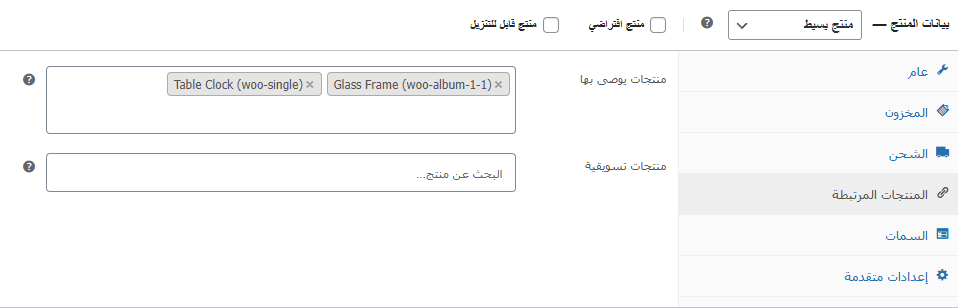
Setting up the conversion-optimized cart
- 1Open the Cart tabGo to Yaxii COD > Settings > Cart.
- 2Turn on quantity controlsLets customers refine the order without leaving the cart.
- 3Turn on upsellsThe single highest-leverage setting in this panel. Even a small take-rate compounds across every order.
- 4Set the upsell countStart with 2 to keep the cart tight. Raise to 4 if you have a deep, well-curated upsell catalog.
- 5Keep the coupon field offUnless you actively run coupon campaigns, this field hurts more than it helps.
- 6Configure upsells on each productOpen your top-selling products and set their upsell relationships in the WooCommerce Linked Products panel.
- 7Save SettingsClick Save Settings.
What’s Next?
The cart is set up to convert. Next, build the Thank-You page — the post-purchase moment that decides whether a customer trusts the order is real, or calls to cancel an hour later.