
Header And Footer Setup
Header & Footer Setup
In page-builder themes, the logo lives in one plugin, the announcement bar in a separate widget, and footer social links in a buried Appearance menu — rebuilding them after a theme switch takes hours. Yaxii COD consolidates every header and footer control into one Settings section: logo mode, navigation icons, announcement bar, free shipping progress bar, sticky behavior, footer layout, social links, and payment badges. What used to take a morning of agency work takes minutes.
Setting Up Your Logo
Go to Yaxii COD > Settings > Header & Logo. Two logo modes are available:
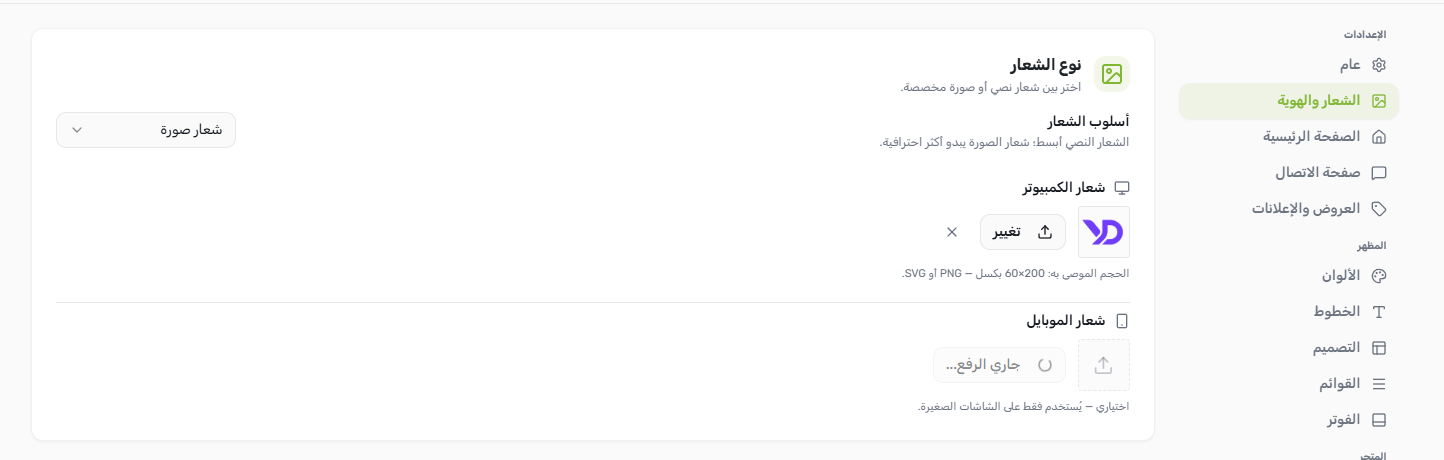
| Mode | Best For | How to Use |
|---|---|---|
| Text Logo | Stores without a graphic file, or those that want a clean typographic brand mark. | Type your store name in the Text Logo field. It renders in your brand font at header scale. |
| Image Logo | Stores with a PNG, SVG, or WebP brand file. | Upload from the Media Library. Set separate images for Desktop and Mobile if needed, and control the max display height (in pixels) for each. |
Header Icons & Navigation Behavior
The Navigation section controls the icons in the top-right header corner and global header behavior:
- Search Icon — Show or hide the predictive search icon in the navbar.
- Cart Icon — Show or hide the cart icon with the live item-count bubble.
- Account Icon — Show or hide the My Account icon linking to the WooCommerce account page.
- Sticky Header — Keeps the header fixed at the top of the screen as customers scroll. Strongly recommended for mobile COD stores.
- Show Breadcrumbs — Displays navigation breadcrumbs on product and category pages, helping customers retrace their steps.
Announcement Bar
The announcement bar is a full-width colored strip above the header — ideal for promoting free shipping thresholds, flash sales, or store-wide offers. Configure it under Yaxii COD > Settings > Promotions:
- Show Announcement Bar — Toggle to enable or disable the bar entirely.
- Announcement Text — The message displayed (e.g., “Free shipping on orders over 3 000 DZD!”).
- Background Color — The bar’s fill color. Use your brand color or a high-contrast promotional color.
- Text Color — The text color inside the bar. Ensure sufficient contrast with the background for mobile readability.
Free Shipping Progress Bar
The free shipping progress bar appears inside the cart. It fills as the cart total climbs toward the threshold you set, nudging customers to add one more item to qualify.
- Show Free Shipping Bar — Enable or disable the progress bar in the cart view.
- Free Shipping Threshold — The cart total in DZD at which free shipping unlocks. Default is 5 000 DZD.
Footer Configuration
Go to Yaxii COD > Settings > Footer to configure the bottom section of your store:
| Setting | What It Controls |
|---|---|
| Footer Style | The overall footer layout. The Default style includes a company column, links column, and contact column. |
| Copyright Text | The legal line at the bottom of the page (e.g. © 2026 Your Store. All rights reserved.). |
| Back to Top Button | A floating button that appears as customers scroll down, returning them to the top on click. |
| Social Links | Enter your Facebook, Instagram, TikTok, and WhatsApp URLs. Only icons for filled-in URLs appear in the footer. |
| Payment Icons | Upload a custom image showing your accepted payment methods (e.g. COD, CIB, Baridimob). Displayed in the footer below the social links. |
What’s Next?
Header and footer are configured. Next, connect your Facebook, TikTok, Snapchat, and Google Analytics tracking from the dedicated Marketing Pixels section.