
Marketing Pixels And Scripts
Marketing Pixels & Scripts
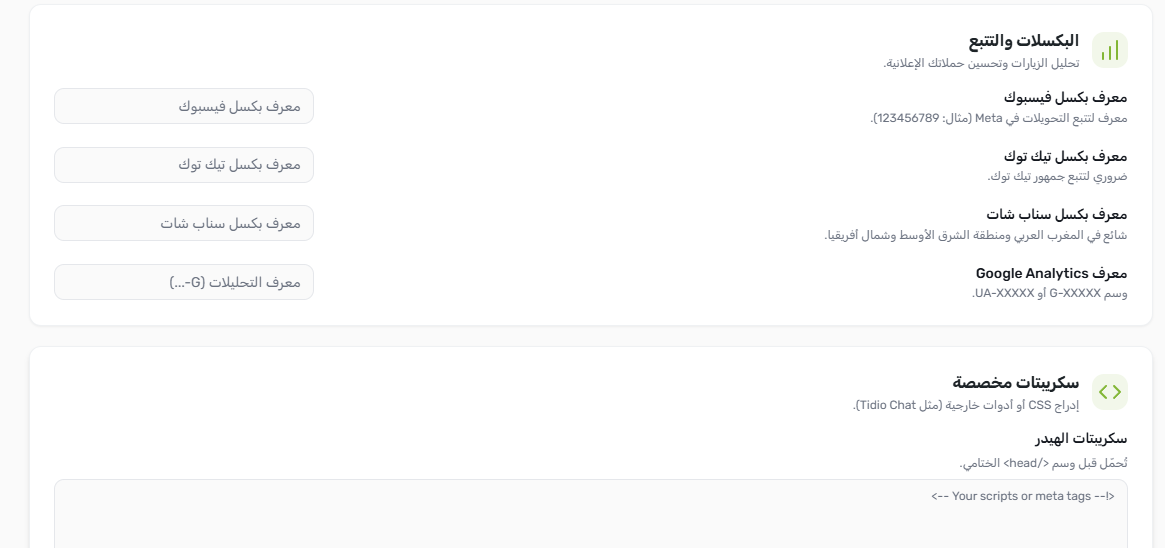
Every time a merchant switches themes, tracking pixels vanish — they lived in a plugin that now conflicts, a child theme that no longer loads, or a snippet that was simply forgotten. Yaxii COD solves this permanently by building the tracking layer directly into the Settings panel. Your Facebook, TikTok, Snapchat, and Google Analytics pixels are stored alongside your other settings and fire on every storefront page automatically — no plugin, no code editor, no disappearing snippets.
Opening the Marketing Section
In your WordPress dashboard, go to Yaxii COD > Settings, then click the Marketing tab in the sidebar.
Adding Your Tracking Pixels
Each platform has a single input field. Paste the ID only — not a full script tag. The theme generates the correct tracking code automatically from your ID.
| Platform | Field Name | Where to Find Your ID |
|---|---|---|
| Facebook / Meta | Facebook Pixel ID | Meta Business Manager > Events Manager > your Pixel > Settings. A 15–16 digit number. |
| TikTok | TikTok Pixel ID | TikTok Ads Manager > Assets > Events > Web Events > your Pixel. Starts with a capital letter followed by digits. |
| Snapchat | Snapchat Pixel ID | Snapchat Ads Manager > Business > Snap Pixel. A UUID-format string. |
| Google Analytics | Google Analytics ID | Google Analytics > Admin > Data Streams > your stream > Measurement ID. Format: G-XXXXXXXXXX. |
- 1Open the Marketing sectionGo to Yaxii COD > Settings > Marketing. [Screenshot: Settings sidebar with the Marketing tab highlighted]
- 2Paste your Pixel IDsEnter the ID for each platform you use. Leave any platform you do not use empty — no pixel will fire for empty fields. [Screenshot: Marketing section showing four labeled ID input fields]
- 3Save your settingsClick Save Settings. Tracking fires on every storefront page from your next page load onward. [Screenshot: Save Settings button in the panel header]
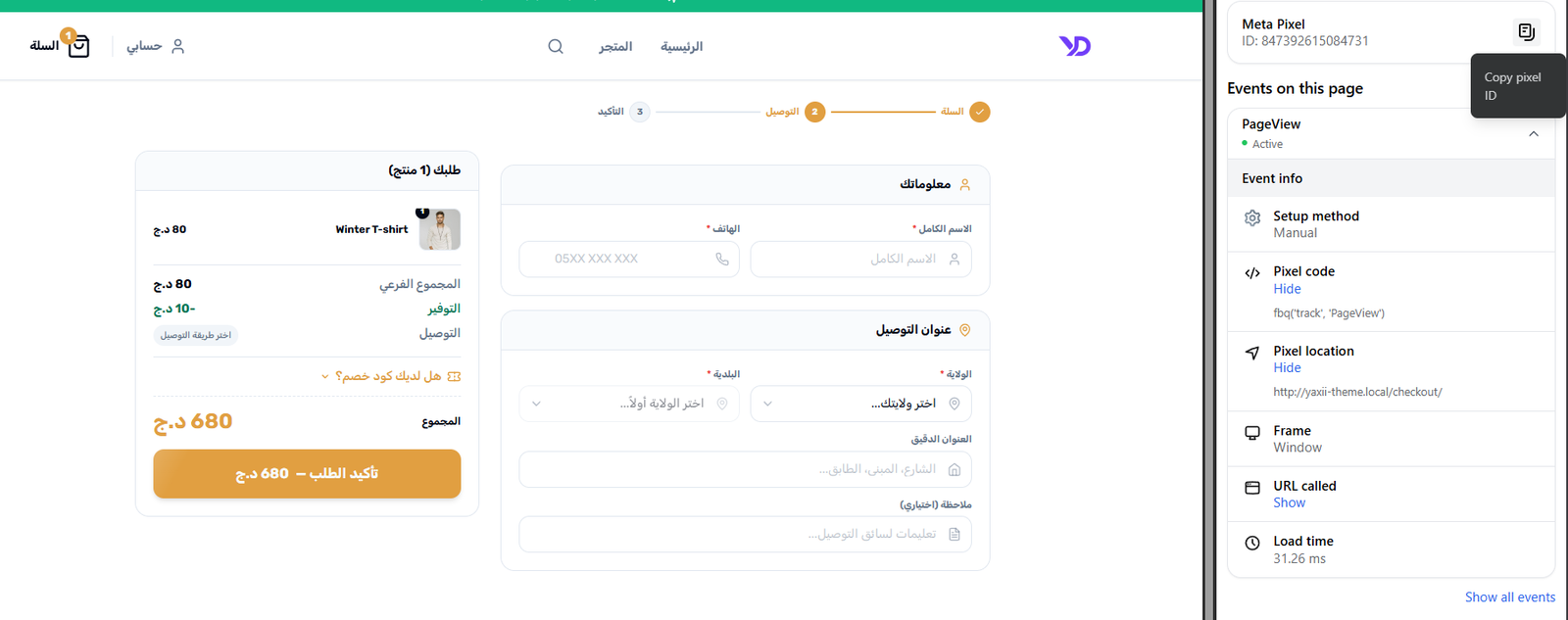
- 4Verify the pixel is firingOpen your storefront in a browser with the Meta Pixel Helper, TikTok Pixel Helper, or Google Tag Assistant extension installed. Confirm the pixel event appears on page load. [Screenshot: Meta Pixel Helper browser extension showing a confirmed PageView event]
Custom Header & Footer Scripts
For tools not covered by the four built-in pixel fields — live chat widgets, heatmap trackers, domain verification tags — the Marketing section includes two raw script areas:
- Header Scripts — Code here is injected just before the closing </head> tag on every page. Use for tools that require early loading, such as tag managers or A/B testing scripts.
- Footer Scripts — Code here is injected just before the closing </body> tag. Use for chat widgets, heatmaps, and scripts that can safely load after the page content.
What’s Next?
Tracking is live. Next, configure the Block Desktop Visitors feature and review the general performance settings for your store.