
Installation And Activation
Installing the Theme & Activating Your License
Most WooCommerce theme setups take days: install the theme, install a page builder, import a demo, delete the demo content, and start over. Yaxii COD works differently. From the moment you download the ZIP file to the moment your storefront is live and licensed, the entire process is designed to take under ten minutes — with no demo content to clean up and no page builder to configure.
Step-by-Step Installation
- 1Download Your Theme FileSign in to your Yaxii account at yaxii.dev/account. Go to My Purchases, find Yaxii COD Theme, and click Download. You will receive a ZIP file named yaxii-cod.zip. [Screenshot: Yaxii account — My Purchases page showing the Download button]
- 2Upload the Theme in WordPressIn your WordPress dashboard, go to Appearance > Themes > Add New Theme > Upload Theme. Click Choose File, select the yaxii-cod.zip file from your computer, then click Install Now. [Screenshot: WordPress Appearance > Themes > Add New > Upload Theme screen]
- 3Activate the ThemeAfter the upload completes, click Activate. WordPress will switch the active theme to Yaxii COD. You will be redirected to the Themes screen. [Screenshot: WordPress theme activation screen with the Activate button highlighted]
- 4Open the License Activation ScreenAfter activation, a notice will appear at the top of the WordPress admin asking you to activate your license. Click Activate License or navigate to Yaxii COD > License in the sidebar. [Screenshot: WordPress admin notice showing the license activation prompt]
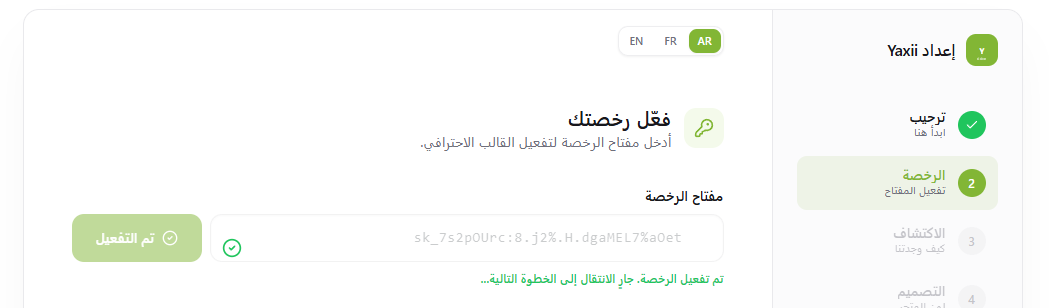
- 5Enter Your License KeyPaste your license key into the input field. Your license key is available in your Yaxii account under My Purchases > Yaxii COD Theme > License Key. Click Activate. [Screenshot: License key input field with the Activate button]
- 6Confirm ActivationOnce the key is validated, the status will change to Active. You will be automatically redirected to the Onboarding Wizard to complete your first-time setup. [Screenshot: License status showing “Active” in green]
Where to Find Your License Key
Your license key is tied to your purchase. You can find it in two places:
- In your Yaxii account at yaxii.dev/account, under My Purchases
- In the purchase confirmation email sent to your inbox at the time of purchase
How Many Sites Can I Use the License On?
The number of sites allowed depends on your plan. Check your plan details in your Yaxii account. If you need to move the license to a different domain, deactivate it on the old site first from Yaxii COD > License > Deactivate, then activate it on the new domain.
What’s Next?
Your theme is installed and licensed. The Onboarding Wizard will now walk you through setting your logo, brand color, and marketing pixels — all automatically, in under five minutes.